Ribbon
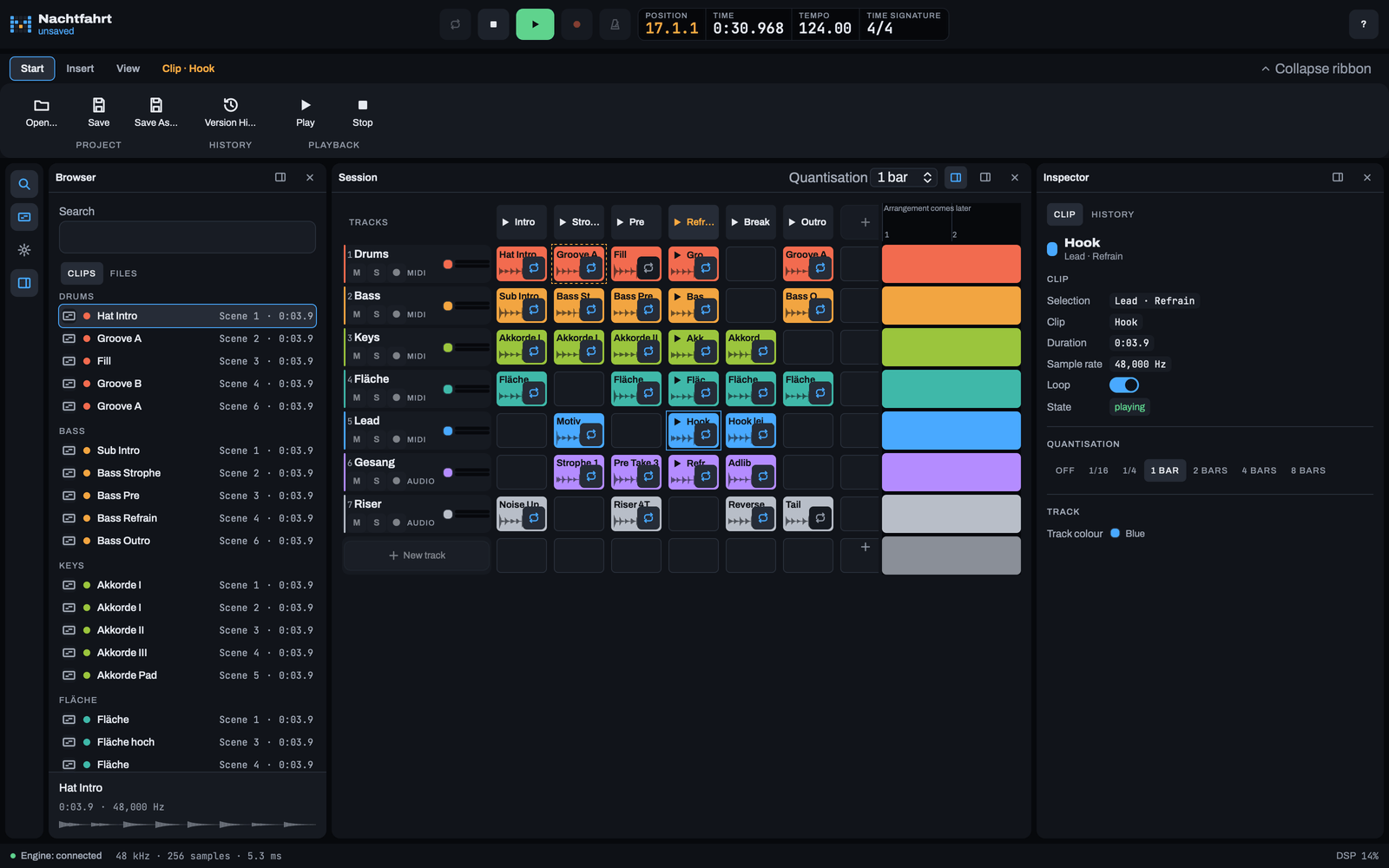
The ribbon is the window's command band: the strip of chrome directly under the header bar, spanning the whole window. It carries commands the window already has as command boxes - open, save and version a project, start and stop playback, add a clip to the session, switch panels and workspaces, and what a selected clip can do - each of them one press away, reachable from wherever you are working.
The band is an additional way to those commands and never the only one. Every box runs the same action as the menu entry, the button or the gesture it stands for: Open… in the band and Project ▸ Open… in the menu bar are one gesture with one name, one section in this manual and one implementation. The native menu keeps its entries, its accelerators and its roles, and the panel rail keeps its latches.
The band shows this build and nothing else. It carries only functions the application really has: a command whose function does not exist yet is not in the band at all - there is no greyed-out placeholder, no dead button and no "coming soon" note - and a tab that carries no command does not render. That is why the Mix tab (Mixen) is not part of this version: this build has no mixer command yet, and a tab without a command gets no tab and no empty band area. The band grows with the roadmap, and this chapter grows with it.
Press F1 over the band itself, without a tab or a box under the pointer, to open this chapter. Press F1 over a command box and the help opens the section of the command it runs - the band repeats the commands, it never grows a second description of one.
The ribbon band
The band sits in the window's chrome row, directly below the header bar and above the work area with its panels and the status bar. It has three states:
- Expanded - the tab row of 34 px with the command row of 86 px below it, 120 px in all. This is the state a workspace starts with.
- Collapsed - the tab row alone, 34 px. A press on a tab opens the command row as a floating overlay for one action (see Collapse ribbon).
- Off - the window renders no band at all: no tab row, no command row, no overlay, no tab, no box and no key of the band. Ribbon in the settings switches the band off, and it is on by default.
Expanded and collapsed belong to the workspace: every workspace entry of the workspace document
(workspaces.json) carries the state of its band, so a switch of the workspace switches the band with
it, and the state comes back after a restart. The band is not a panel: it has no panel id, the
panel rail and the panel lists never show it, and no workspace stores it in
its arrangement - which is also why Reset to built-ins in the
workspace manager leaves a collapsed band collapsed. Which tab is
open, and whether the overlay of a collapsed band is up, are transient: neither is stored, and a new
start begins on the band's own rule (the Start tab, or the contextual Clip tab while a clip is
selected).
The tab row is the band's first row: one tab per tab of the band's vocabulary that carries a command in this build, in the fixed order Start, Insert, Mix, View - this version renders Start, Insert and View - followed, last, by the contextual Clip tab while a slot with a clip is selected. The tab in effect is filled and carries the accent ring; the contextual tab wears the amber ink of the selection instead. The collapse control sits at the trailing edge of the row.
The command row is the band's second row: one row of groups. A group is a set of command boxes with its name in capitals below them - Project, History, Playback, Audio, Panels, Workspaces. A box is 64 x 52 px and carries the command's glyph above its label; the label stays on one line: a label wider than the box is shortened with an ellipsis, and its full text stands in the tooltip. Where a command really has a key, the tooltip names it - the shell's accelerator or the effective binding of your shortcut map, so a key you remapped shows up in the band; a command without a key shows none rather than an invented one.
The command row is exactly as wide as its groups. When the window becomes narrower than they are, the row scrolls horizontally inside the band, so the band never widens the window, never wraps a group onto a second line and never moves the panels below it.
A command that needs the engine is disabled while the interface is not connected to it: its box stays in place, is dimmed and takes no highlight under the pointer, and it sends nothing; its tooltip and its anchor stay, so F1 still opens its section. Add clip is disabled for a second reason as well: while the session grid has no free add cell left, there is no target to load into (see Add clip).
Nothing of the band is a second command layer, and nothing of it touches the audio path: every box runs an action of the window or one command of the engine's own command interface, exactly the action the menu entry and the button run. Opening and closing the band, collapsing it and switching a tab change no clip, no tempo and no transport state.
Start
The first tab, and the tab in effect whenever nothing else applies. It holds three groups:

- Project - Open…, Save and Save As…, the three file commands of the Project menu, with the accelerators the operating system resolves for them: ⌘O for Open…, ⌘S for Save and ⌘⇧S for Save As… - Ctrl+O, Ctrl+S and Ctrl+Shift+S on Windows and Linux. Each box opens the same dialog and asks the same questions as its menu entry, the unsaved-changes question included.
- History - Version History, the entry that selects the History tab of the Inspector and reveals that panel (see Version History and The History tab). It carries no key, because its menu entry has none.
- Playback - Play and Stop, the two live buttons of the transport in the header bar. Play prints the binding of the Play/Stop action of your shortcut map - Space by default, and whatever you bound to it after a remap (see Play/Stop (Space)); Stop prints no key at all, because the map's one transport action is the toggle and a key on Stop would claim that a press of Space stops while nothing sounds.
Insert
The one insert of this build, in the group Audio: the box Add clip. It is the gesture of the
add cell of the launcher - the + cell at the end of the rows and the
columns - exactly as if you pressed that cell: the shell's native file dialog opens, filtered to the
formats the engine decodes (WAV, AIFF, FLAC), and the file you pick is loaded into the add
cell with the loop switch on. A cancelled dialog changes nothing: no command, no state and no message.
The box is disabled while the connection to the engine is down, and it is disabled as well while the grid has no add cell - when every slot of the rendered rows and columns is used, there is no free target, and a box that loaded a clip somewhere you cannot see would be a lie. This build has no other insert: no insert-device command and no insert-MIDI command exists, so the tab carries no such box.
View
The two menus the header bar carried in earlier versions, as command groups - the same gestures, the same manual sections, one press away:
- Panels - one latch per panel this build renders. The group lists them in the rail's order: Browser, Session, Settings, Inspector. The native View ▸ Panels menu lists the same four panels in another order - Browser, Inspector, Session, Settings. A press closes that panel or shows it again, exactly like the button of the panel rail: a closed panel leaves the window and its placement goes with it, while a panel without a placement is appended to the left region, which becomes visible. The latches act on the same arrangement of the workspace in effect (see Panels (list)) - the box itself carries no state, unlike the rail button and the menu entry - and the new arrangement is written to the workspace document once, at the end of the gesture.
- Workspaces - one command for each of the four workspaces every build ships: Default, Recording, Mix and Live (see Workspace (menu)). A press applies that workspace at once, and the panels of the window rearrange. Behind them stands Manage Workspaces…, which opens the Workspaces dialog (see Workspace manager).
A workspace you saved is not a box of this group: it is your own entry in the workspace document, and you apply it through the native View ▸ Workspace menu or from the manager. Both surfaces and the commands of this tab read the same document and label it the same way. None of these commands touches the audio path - applying a workspace and toggling a panel change the arrangement of the window and nothing else.
Clip (contextual)
The contextual tab of the band. It renders only while a slot with a clip is selected in the session grid: a selected empty slot has no clip to start, no name to carry in the tab and no loop to flip, so it is no context for this tab.
The tab is selected on the first selection: the moment your selection lands on a slot that holds a clip, this tab comes up without a second gesture, and it goes away with the selection - while it is the tab in effect and the selection leaves the clip, the band falls back to Start. Its label names the clip it stands for: the word Clip and the name of the selected clip, as in Clip · Hook. The tab is painted in the amber ink of the selection, and its boxes carry that ink for their glyph and their label too, so the three of them read as one set.

Its commands address the selected slot, never the focused cell of the grid:
- Launch starts that clip - the same gesture as pressing the slot - at the launch quantisation of the session. A second press relaunches it, exactly like a second press on the cell.
- Scene starts the whole scene the clip sits in: the same command as the launch triangle of the scene head above its column.
- Loop flips the loop switch of that clip - the same switch as the one in the corner of the slot, and the same as the grid's L key.
None of the three boxes prints a key: the grid's Enter and L act on the focused cell, not on the selection, so a key on these boxes would promise a gesture that does something else. All three are disabled while the interface is not connected to the engine: they send a command for a clip, and without a connection there is nobody to answer it.
Collapse ribbon
The control at the trailing edge of the tab row, behind a flexible spacer. It names what a press does: Collapse ribbon while the band shows its command row, Show ribbon while it does not, each with the chevron of its state - pointing up while the band is expanded, down while it is collapsed.

A press folds the band down to its tab row or opens it again, and it is the one control that writes
the state of the band into the workspace: the workspace in effect keeps the value until you change it,
switching to another workspace brings that workspace's own state with it, and the value survives a
restart in workspaces.json. Nothing else moves - the panels keep their place and their size, and the
work area simply gains the 86 px of the command row back.
Collapsed, the command row is an overlay. A press on a tab - or Enter on the focused tab - opens the command row as a bar floating over the work area, with the one soft shadow the shell uses for menus and popovers. The band itself keeps its 34 px and the work area below is not re-laid out, so nothing jumps while you pick a command. The overlay closes with the next action: with the command you run, with Escape, or with a press anywhere outside it. It is never stored, and a restart begins with the band your workspace names - collapsed, and without an overlay open.
Keyboard: Enter on the focused control folds the band or opens it again, exactly like a press. Space is not the collapse control's key: the row leaves it to the transport, as it does on every other button of the shell (see Play/Stop (Space)) - use Enter. Escape closes an open overlay and puts the focus back into the tab row.
Switching the band off
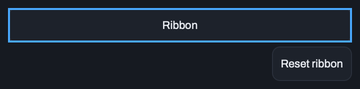
Turn Ribbon off in the settings and the window renders no band at all: no tab row, no command row, no overlay, no tab and no box, and F6 has no target. The band disappears at once, and the state your workspace carries for it is kept rather than forgotten - switching the setting back on, or pressing Reset ribbon, brings the band back in that state.
No command is lost with the band. Every one of them stays on the surface that owns it:
- the project commands - Open…, Save, Save As… and Version History - in the native Project menu (Open…, Save and Save As… with their accelerators; Version History has none);
- the four panels in the native View ▸ Panels menu, one entry per panel with a check mark, and at the panel rail, one latch per panel;
- the workspaces and the workspace manager in the native View ▸ Workspace menu;
- the transport commands - Play and Stop - in the transport of the header bar;
- the clip commands - launch, scene and loop - in the session grid, on the slot, the scene head and the loop switch of the cell.
A panel head carries neither a transport nor a clip command - the head's two frame controls are Region and Hide (the Session panel adds its own quantisation and arrangement controls to its head row). And the band is a surface of the desktop window alone - the iPad remote has none of it (see iPad remote).
The command groups and their sections
Every box of the band runs a control, a setting or a menu entry that this manual already describes, and it carries that section's anchor: F1 over a box opens the very command, wherever the shell paints it. This chapter therefore repeats no description of a command - it names the groups and points at the sections. The whole inventory of this build:
| Tab | Group | Boxes | Documented in |
|---|---|---|---|
| Start | Project | Open…, Save, Save As… | Open…, Save, Save As… |
| Start | History | Version History | Version History |
| Start | Playback | Play, Stop | Play, Stop |
| Insert | Audio | Add clip | Add clip |
| View | Panels | Browser, Session, Settings, Inspector | Panels (list), Panel rail |
| View | Workspaces | Default, Recording, Mix, Live, Manage Workspaces… | Workspace (menu), Workspace manager |
| Clip | Playback | Launch, Scene, Loop | Clip slot, Scene head, Loop |
The table is the whole band. There is no other tab and no other box, and there is no group whose name this table does not list: a function that arrives in a later version arrives with its own box in the tab it belongs to, and the section it runs is written for the control, not for the band.
Keyboard
The band is operable without the mouse. The tab row is its keyboard entry point:
- F6 moves the keyboard focus into the tab row from anywhere in the window (see Move the focus into the ribbon). It is a binding of the shortcut map like every other one, so you can put it on another key; while the band is switched off there is no row, and the key then does nothing.
- ← / → - and the up and down arrows as their equivalents - move the roving stop between the tabs this build renders and wrap at both ends. Home jumps to the first rendered tab, End to the last one.
- Enter - and Space - on a focused tab make it the tab in effect, so its command row appears; while the band is collapsed they open the overlay instead. The tab row keeps both keys for itself, so a press there activates the tab and does not reach the transport underneath.
- Tab walks on from the row - to the collapse control and then through the boxes of the command row; Shift+Tab steps back. Every box is a button like any other, and the two window-wide transport keys keep their meaning over it: while the interface is connected to the engine, Space starts or stops playback and Enter jumps the playhead to the start of the project instead of running the focused box (see Play/Stop (Space) and Position) - run a box with the pointer.
- Escape closes an open overlay and leaves the focus in the tab row; without an overlay it leaves the band and hands the focus back to the control it came from, so a stretch of keyboard work returns you where you were.
- F1 opens the manual: this chapter over the band, or the section of the command under the pointer or with the focus.
For assistive technology the tab row is a tab list and the command row is the panel it controls, each tab announcing whether it is the one in effect, and the collapse control announcing whether the band is expanded. The name of a box is its visible label, and its tooltip carries the same words plus the key where there is one.
Workflow: reach the commands of a tab with the keyboard
- Press F6: the focus lands on the row's roving stop - the tab the row stands on, that is the tab in effect until you step the stop somewhere else with the arrow keys.
- Step to the tab you want with ←, →, Home or End, and press Enter or Space: the tab becomes the tab in effect and its command row appears - while the band is collapsed, it appears as the overlay above the work area.
- Press Tab to walk from the tab row into the command row: the collapse control comes first, then the boxes of the tab's groups. Shift+Tab steps back.
- Read what a box does from its label and from its tooltip - the tooltip names the command and the key it really has - and run the box with the pointer. Over a focused box the window-wide keys keep their meaning while the interface is connected to the engine, so Space starts or stops playback and Enter jumps the playhead to the start of the project instead of running the box; the key a tooltip prints - an accelerator like ⌘S, or a binding of your map - belongs to the command itself and works wherever the focus is.
- Press Escape to leave the band and to put the focus back where it was.
Remote
The iPad remote has no ribbon: the band belongs to the desktop window, and the remote's own surfaces are the connect screen and the session grid (see iPad remote). The remote starts clips, scenes and the transport with its own buttons, which speak the same commands the boxes of the band run - the band is a second path to a command on the desktop, never a precondition for the remote.